Color Roles Management
Color Roles are the heart of Rinelle. They allow you to add vibrant personality and warmth to your Discord server with curated palettes, single or dual-color gradients, and interactive self-service menus for your community.
This guide will walk you through setting up your palette, creating new color roles, binding pre-existing Discord roles, and publishing member color pickers without needing any technical knowledge or manual role permissions tweaking.
1. The Setup Control Panel
All color role management happens inside Rinelle's interactive Components V2 Control Panel. To open the dashboard, run the primary administrative command in any channel where you have moderator or admin permissions:
/setup
┌─────────────────────────────────────────────────────────┐
│  🌸 Rinelle • Atelier Control Panel                     │
│                                                         │
│  [ 🖼️ Generated Color Palette Preview Canvas ]          │
│                                                         │
│  -# Managed Color Roles: 12 / 50                        │
│                                                         │
│  [ ➕ Add Role ]  [ ✏️ Edit Role ]  [ ↕️ Reorder ]  [ 🗑️ Remove ] │
└─────────────────────────────────────────────────────────┘
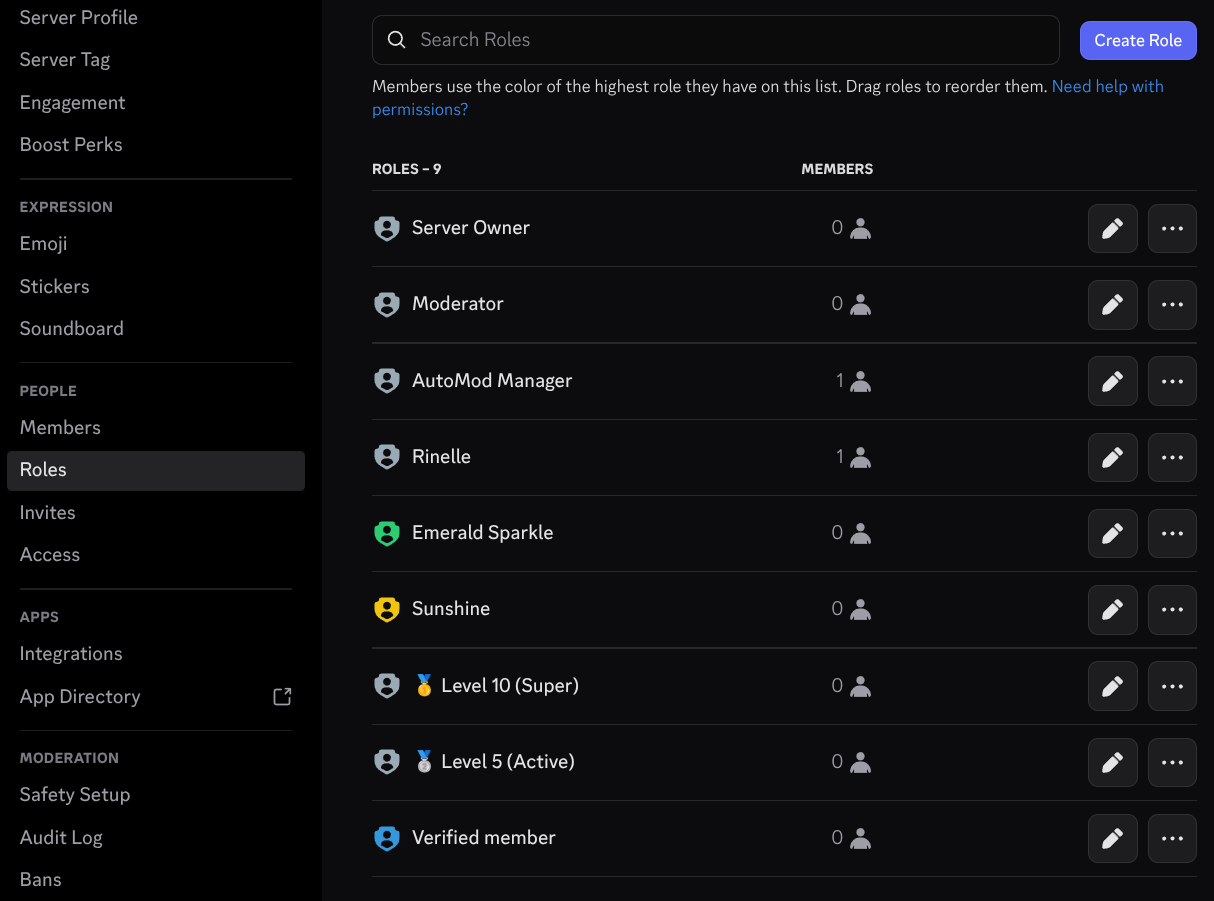
When you open /setup, Rinelle displays a live Palette Preview Canvas showcasing all currently configured color swatches. From this message, you can manage your entire palette using four intuitive action buttons:
- Add Role: Create a brand new single-color or gradient role.
- Edit Role: Update role names, change colors, or adjust gradients.
- Reorder Roles: Rearrange the visual ordering of roles in previews and menus.
- Remove Role: Safely delete roles you no longer want.
2. Creating New Color Roles
To create a new color role for your server:
- Run
/setupand click the Add Role button. - Fill out the creation form in the popup modal:
- Role Name: Enter a friendly name for the role (e.g.
Sakura Bloom,Ocean Teal,Midnight Velvet). - Primary Color: Enter a standard 6-character hex code (e.g.
#FF7597orFF7597), or a common color name (such aspink,cyan, orgold). - Secondary Color (Optional): Enter a second color code to create a gradient role, smoothly rendered in your palette preview canvas.
- Role Name: Enter a friendly name for the role (e.g.
- Click Submit to finalize the role.
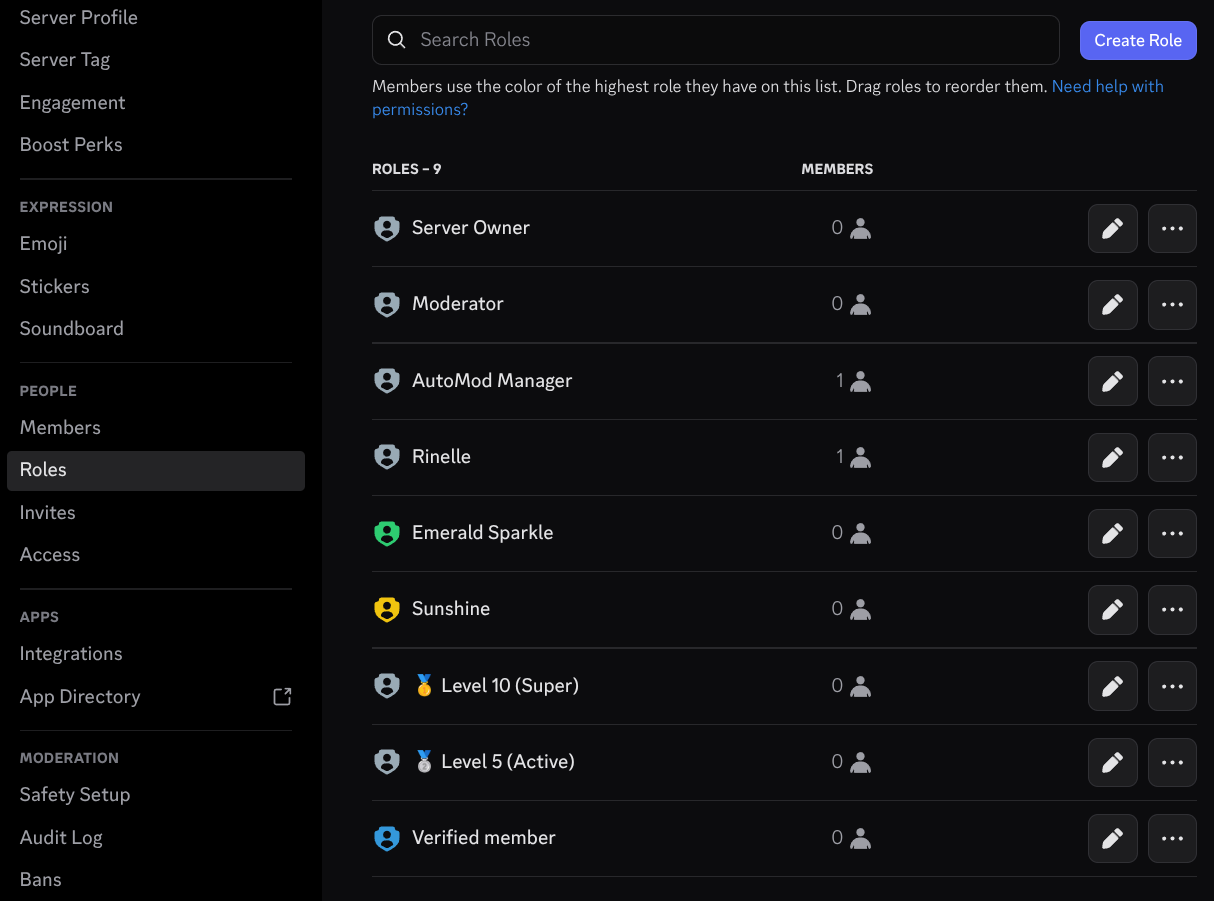
Note: Rinelle automatically handles the Discord setup for you. When you submit the form, the bot creates the role in Discord, positions it safely in your server hierarchy, assigns safe default permissions (zero server permissions, non-mentionable), and regenerates your palette preview.
3. Binding Existing Server Roles
If your server already has custom roles created in Discord before adding Rinelle, you do not need to delete or recreate them manually. You can import them directly into Rinelle using the bind command:
/bind-roles
- Run
/bind-rolesin any administrative channel. - Select up to 25 existing roles from the multi-select dropdown menu.
- Click outside the dropdown or submit to start the binding process.
Automatic Security & Permission Audit
Before binding any role, Rinelle automatically inspects it to keep your server safe:
- Permission Scan: If a role accidentally has administrative or moderation permissions (like
Manage MessagesorKick Members), Rinelle alerts you so ordinary members won't receive elevated powers by picking a color. - Display Checks: Rinelle checks for invisible names or hoisted settings to ensure the role displays nicely in member lists.
- Instant Cataloging: Safe roles are immediately registered into Rinelle's database and added to your palette canvas.
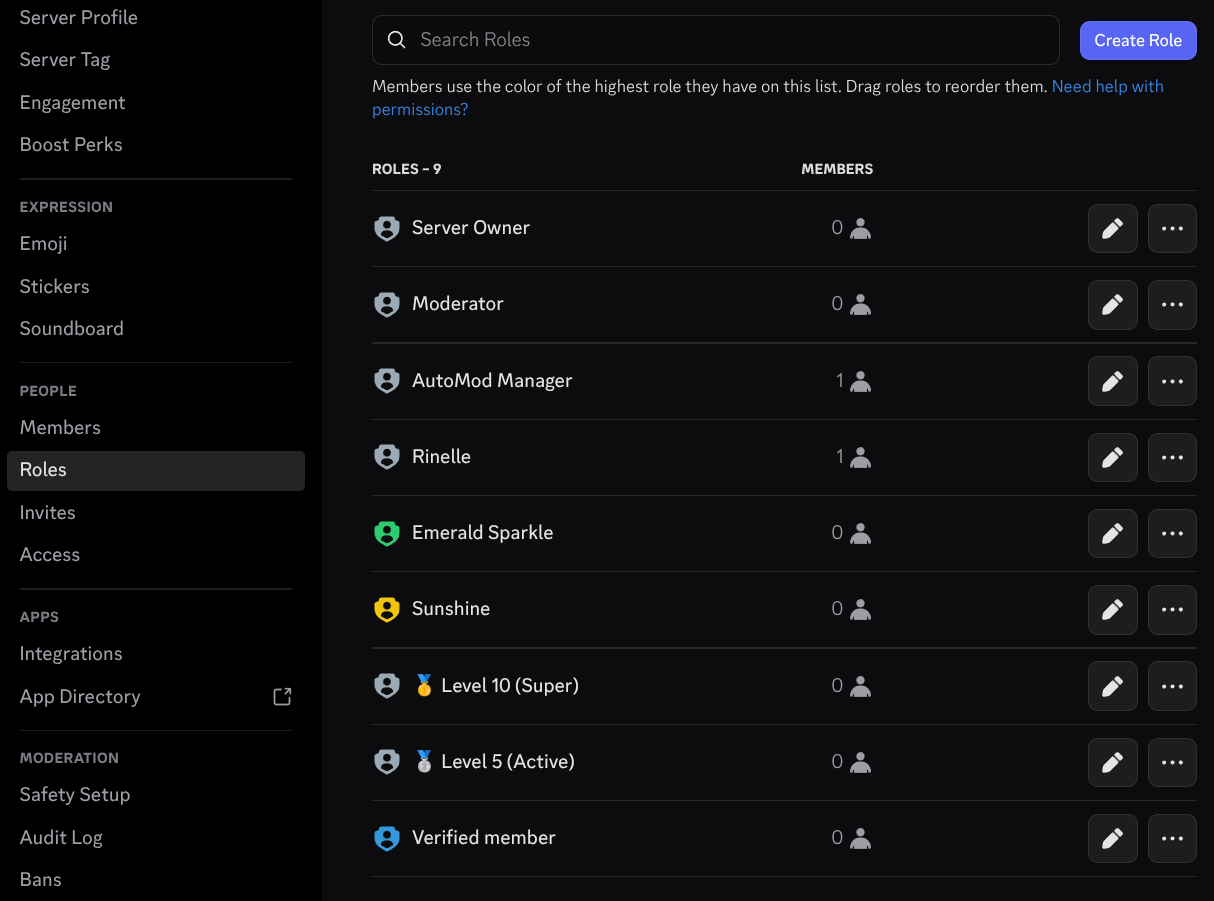
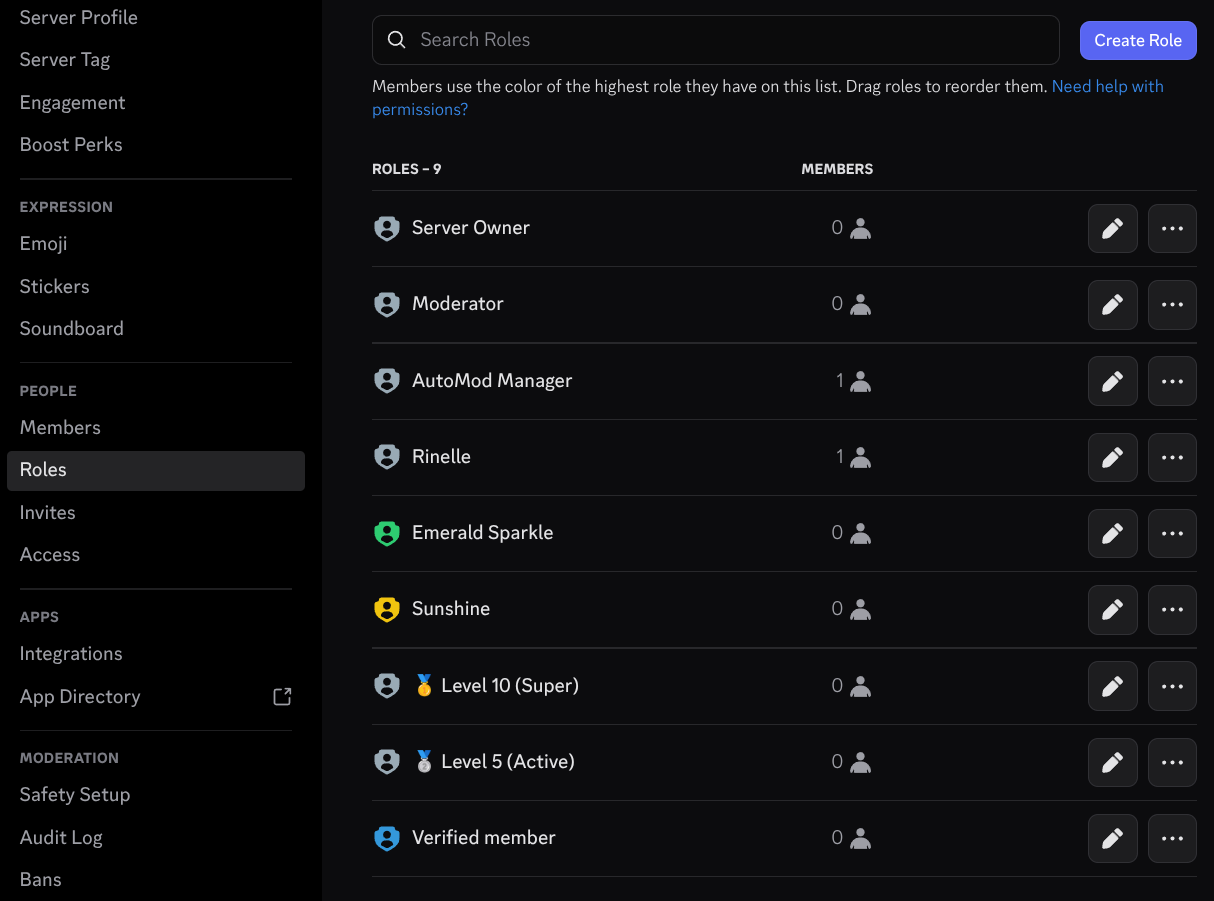
Important: Rinelle can only manage roles positioned below its own role in Server Settings > Roles. If a role is placed higher than Rinelle, drag the Rinelle role above it before binding.
4. Customizing, Sorting & Deleting Roles
Managing your existing palette is just as simple from the /setup panel:
✏️ Editing an Existing Role
Need to adjust a shade or fix a typo in a role name?
- Click Edit Role in
/setup. - Select the role you want to modify from the dropdown list.
- Update the name, primary hex code, or secondary gradient color in the modal and submit. Rinelle instantly updates both Discord and your palette preview.
↕️ Reordering Roles (Visual Sort)
Rinelle lets you automatically organize your palette so similar shades appear together in menus:
- Click Reorder Roles in
/setup. - Select your desired sorting criterion:
- Sort by perceived color: Arranges colors like a natural rainbow by hue and lightness.
- Sort alphabetically: Organizes roles from A to Z by name.
- Sort by color value: Orders roles by numerical hex color value.
- Sort by creation time: Restores the chronological order in which roles were created.
- Rinelle updates both your Discord role hierarchy and visual palette positions (
vpos) to match.
🗑️ Deleting Color Roles
When cleaning up seasonal or outdated colors:
- Click Remove Role in
/setup. - Select the role(s) you wish to remove.
- Rinelle cleans up the role from the database and removes it from Discord.
5. Sharing Colors with Members
Once your palette is ready, give your community members an easy way to pick their favorite color with the interactive color picker:
/color-menu
You can also send the menu directly to a specific channel (such as #roles or #colors):
/color-menu channel:#roles
┌─────────────────────────────────────────────────────────┐
│  🎨 Community Color Roles                               │
│  Pick your favorite color to customize your nickname!   │
│                                                         │
│  [ 🖼️ Server Color Palette Canvas ]                     │
│                                                         │
│  [ Select a color role...                          ▼ ]  │
│  [ 🔄 Reset active color role                        ]  │
└─────────────────────────────────────────────────────────┘
How It Works for Members:
- Single-Click Claim: Members open the dropdown menu, select any color role, and Rinelle assigns it instantly.
- Automatic Single-Color Swap: Selecting a new color automatically removes their previous Rinelle color role in one smooth action—preventing role buildup and clutter.
- Self-Service Reset: Members can click the Reset active color role button anytime to remove their active color and return to their default server appearance.
Next Steps
Now that your server colors are looking vibrant and organized, explore how to keep your server permissions clean and check out advanced features:
- Role Verification & Diagnostics — Use
/verify-rolesto scan for permission leaks, deleted ghost roles, and hierarchy desyncs with one-click Auto-Fix repair. - Slash Commands Reference — Complete syntax and permission breakdown for all Rinelle application commands.